Time Zone Support
When you create an expense or income item, Expenses saves the device time zone with it. The item’s local date and time stay tied to that saved time zone, even when you travel or view it from a device in another time zone.
For example, if you add an expense in New York on 2024-03-31 07:44 AM, Expenses saves America/New_York with it. Opening the app later in London still shows that expense as 2024-03-31 07:44 AM in New York time.
When you edit the date, Expenses keeps the item’s existing clock time in its saved time zone. Date-based features also use each item’s saved time zone, including sheet sections, date filters, Stats, Trends, Total Balance periods, pending end dates, repeat schedules, and exports. This keeps travel expenses on the intended local day instead of moving them across day, month, or year boundaries.
Date-based views refresh at local midnight, so views such as Today and As of Today move to the new day without requiring you to reopen the app.
CSV exports include a Time Zone column. Importing that file back into Expenses preserves each item’s local date, time, and time zone. See Export CSV Data and Import CSV Data.
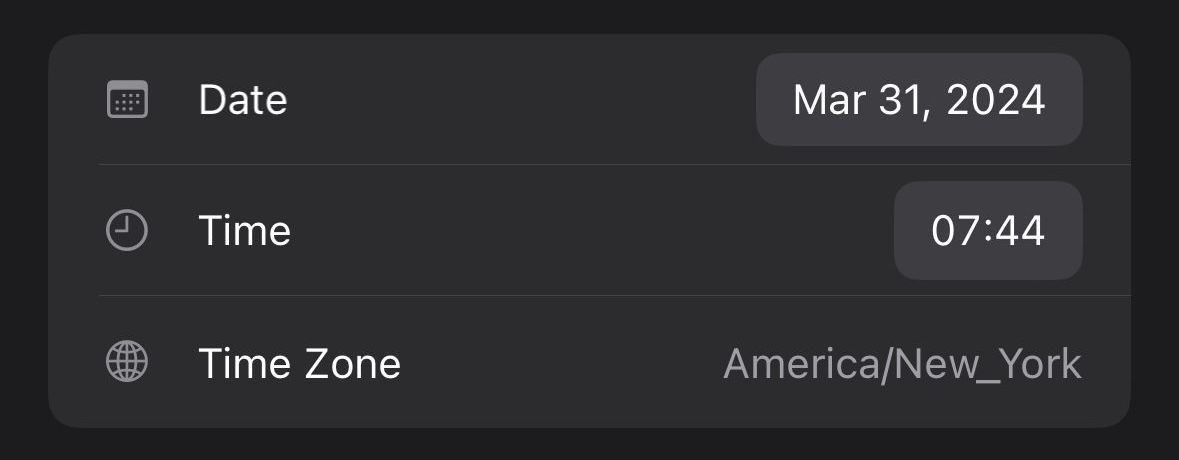
Expenses shows the time zone in the item detail view when it’s different from the device’s current time zone.
If you still have questions, we're here to help. Please get in touch and we'll respond shortly.